01
Write a Short Prompt
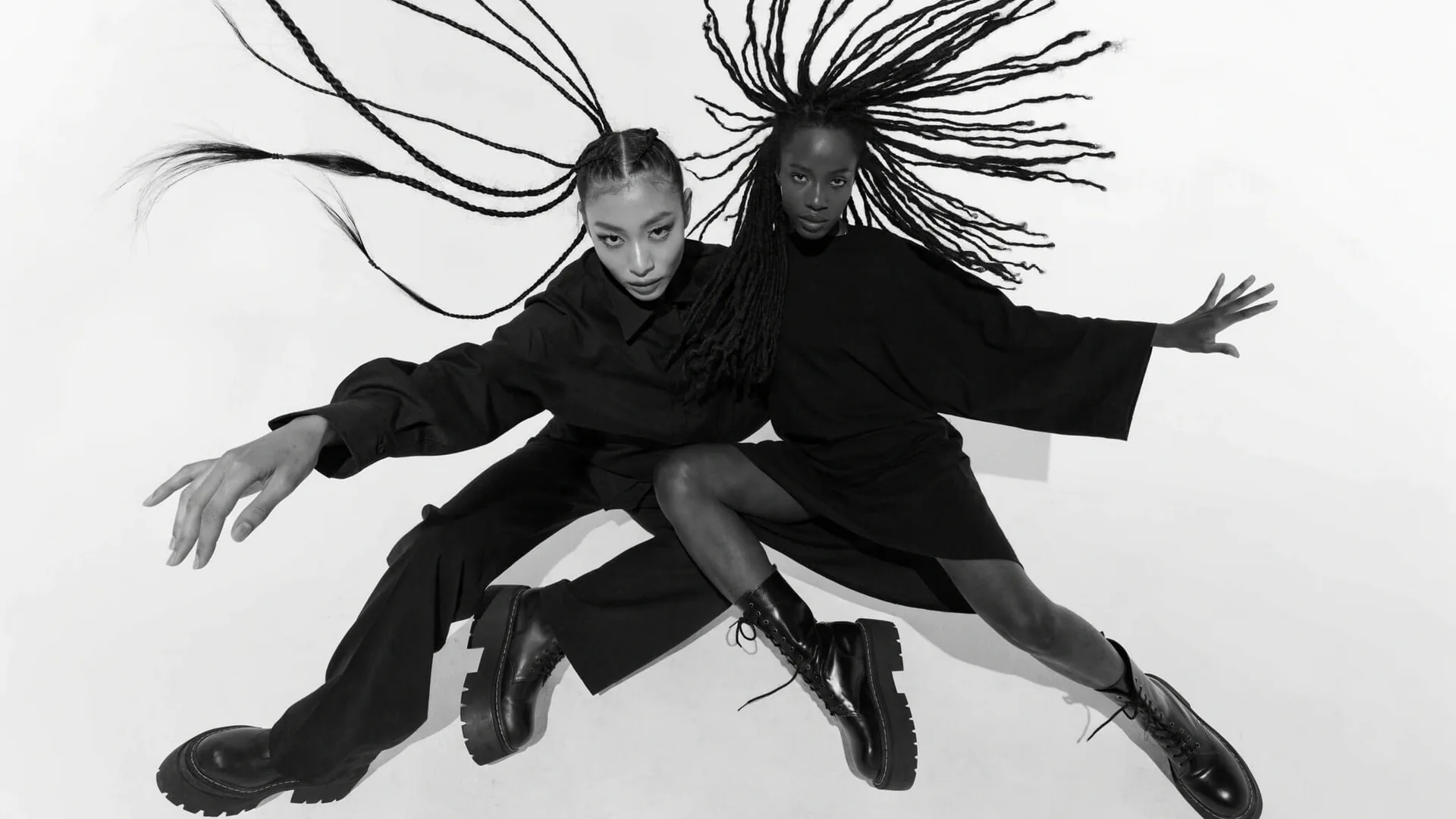
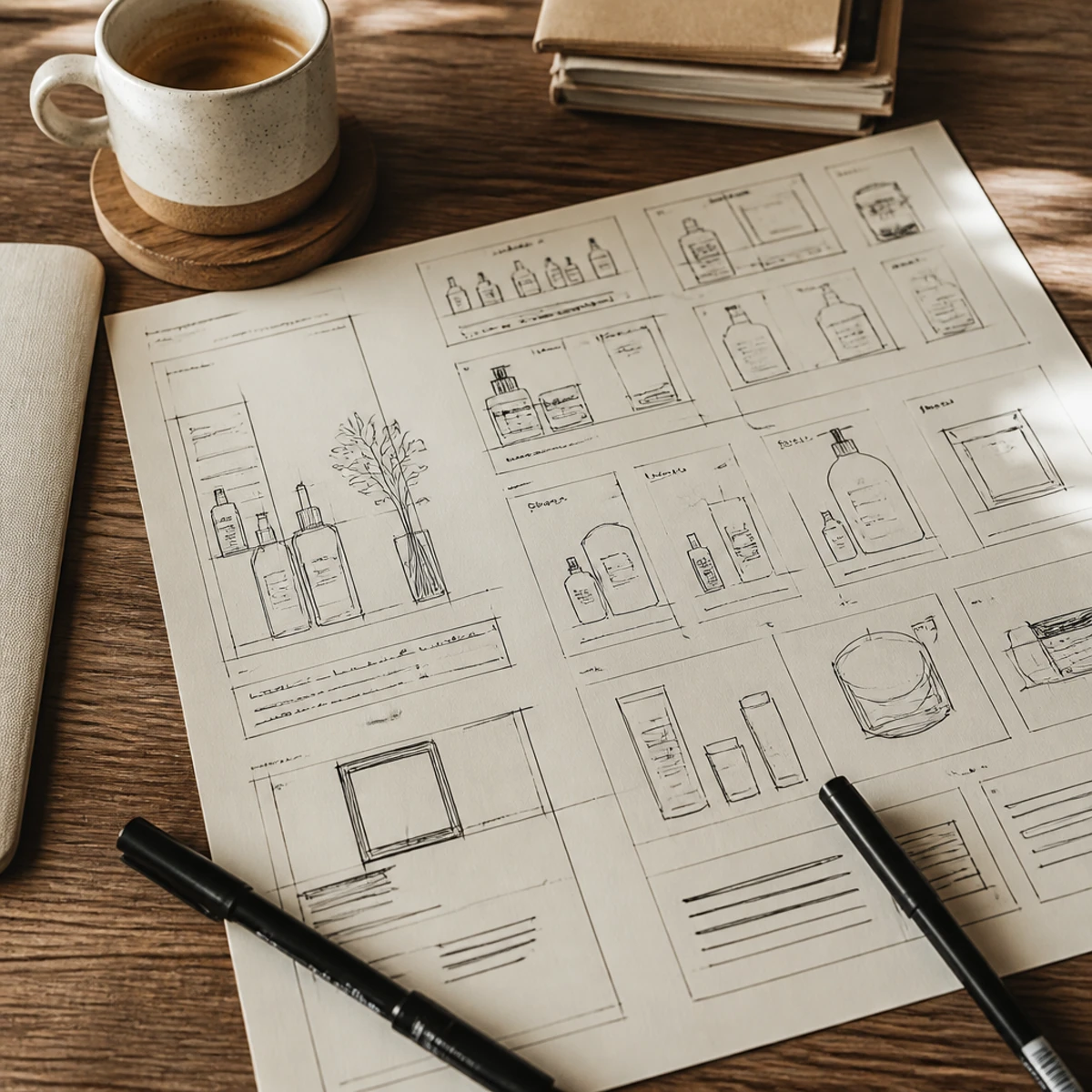
Separate subject action from camera movement in a short prompt. For example: a person walks left while the camera slowly pulls back. Name the starting composition and the moment you want to inspect at the end.
Kling 4 helps you plan and test one shot idea before committing to a storyboard. Use concrete references, separate subject and camera motion, and check controls for your chosen model.
Planning prompts
Use the concept images below to plan a camera move and decide what to inspect. They illustrate the prompts; they are not demonstrated video outputs from this site.
Workflow
Separate the action from the camera move, choose suitable references, then review one change at a time.
01
Separate subject action from camera movement in a short prompt. For example: a person walks left while the camera slowly pulls back. Name the starting composition and the moment you want to inspect at the end.

02
Select a reference image that shows an unobstructed subject and framing. If controls allow first/last frame, check they are compatible with your intended shot.
03
Use the duration, resolution, and aspect-ratio controls shown for the selected model. Read the credit cost on the generate button. Run one variable change per test.
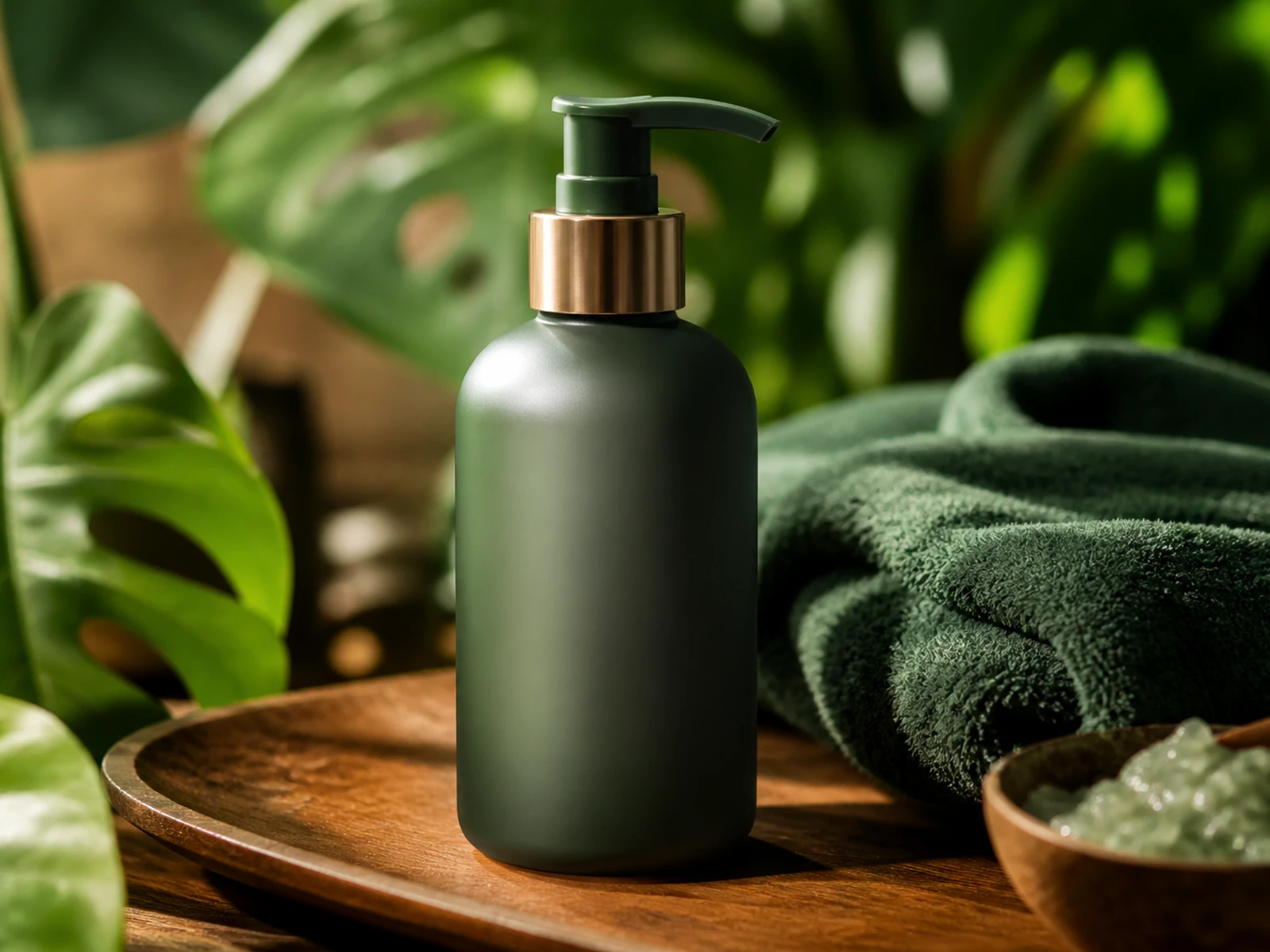
04
Open the downloaded clip in a player or editor. Check the beginning, the end, and any frames with fast motion for jumps or distortions. Keep the original file when you move the shot into your editing timeline.
How It Works
A reference gives the model a visual starting point; the prompt describes the intended movement. Choose inputs that agree on the subject, pose, and framing, then inspect how those details change through the clip.
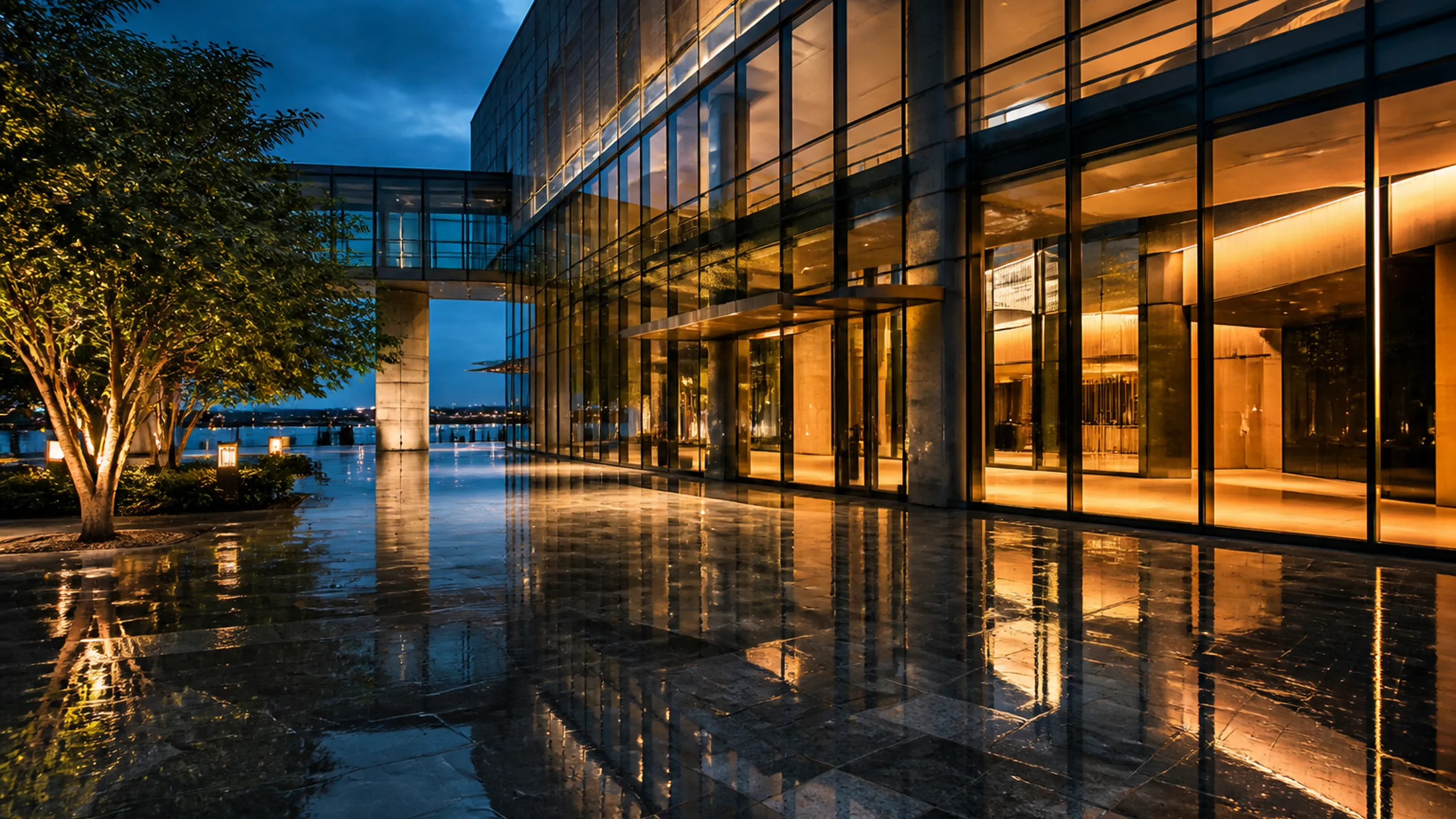
Select a model whose controls match your intended shot type. For example, if you need first/last frame control, choose a model that offers it.
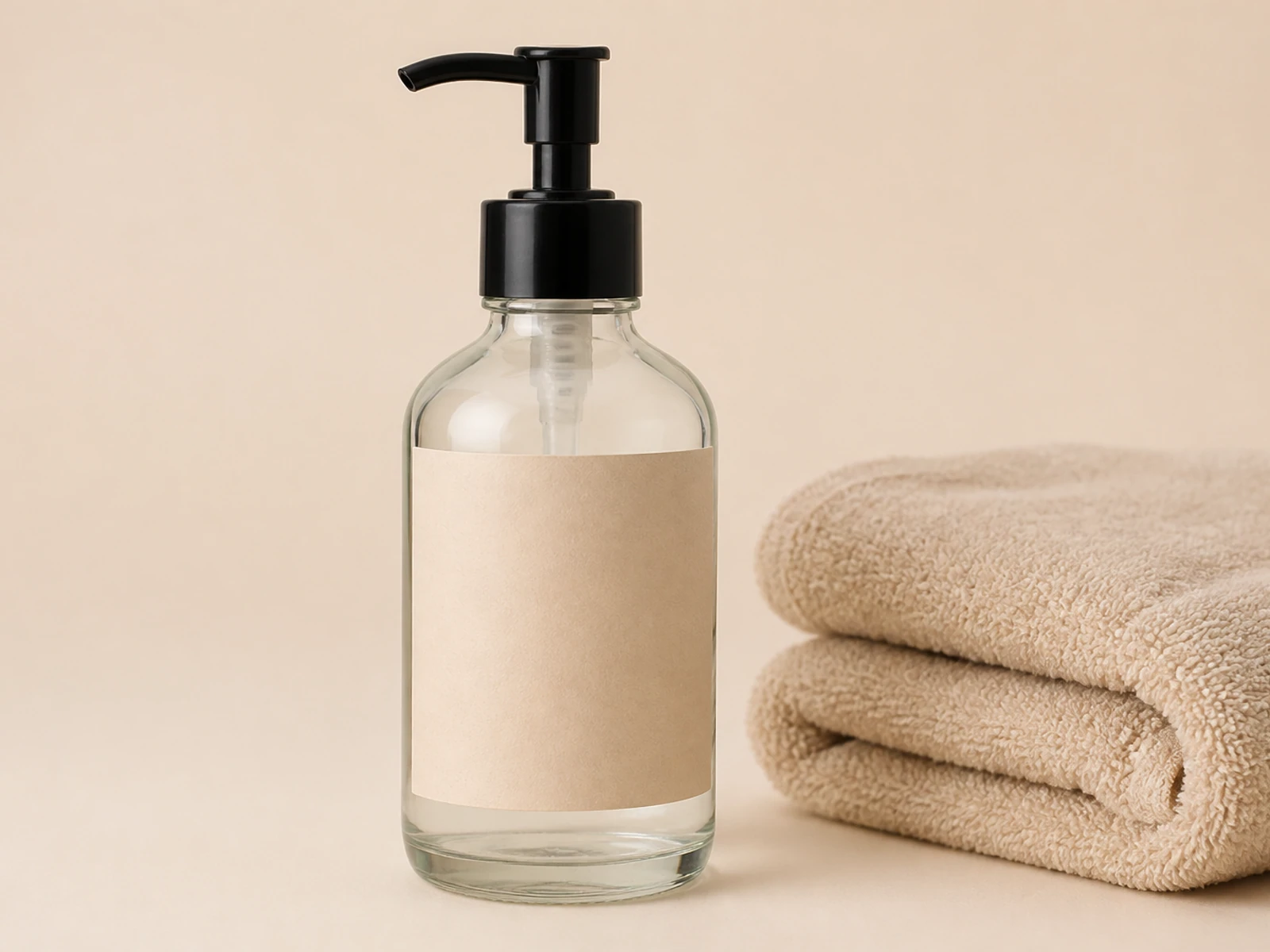
Use a reference image that shows the subject without obstructions. Ensure the framing matches your intended shot.
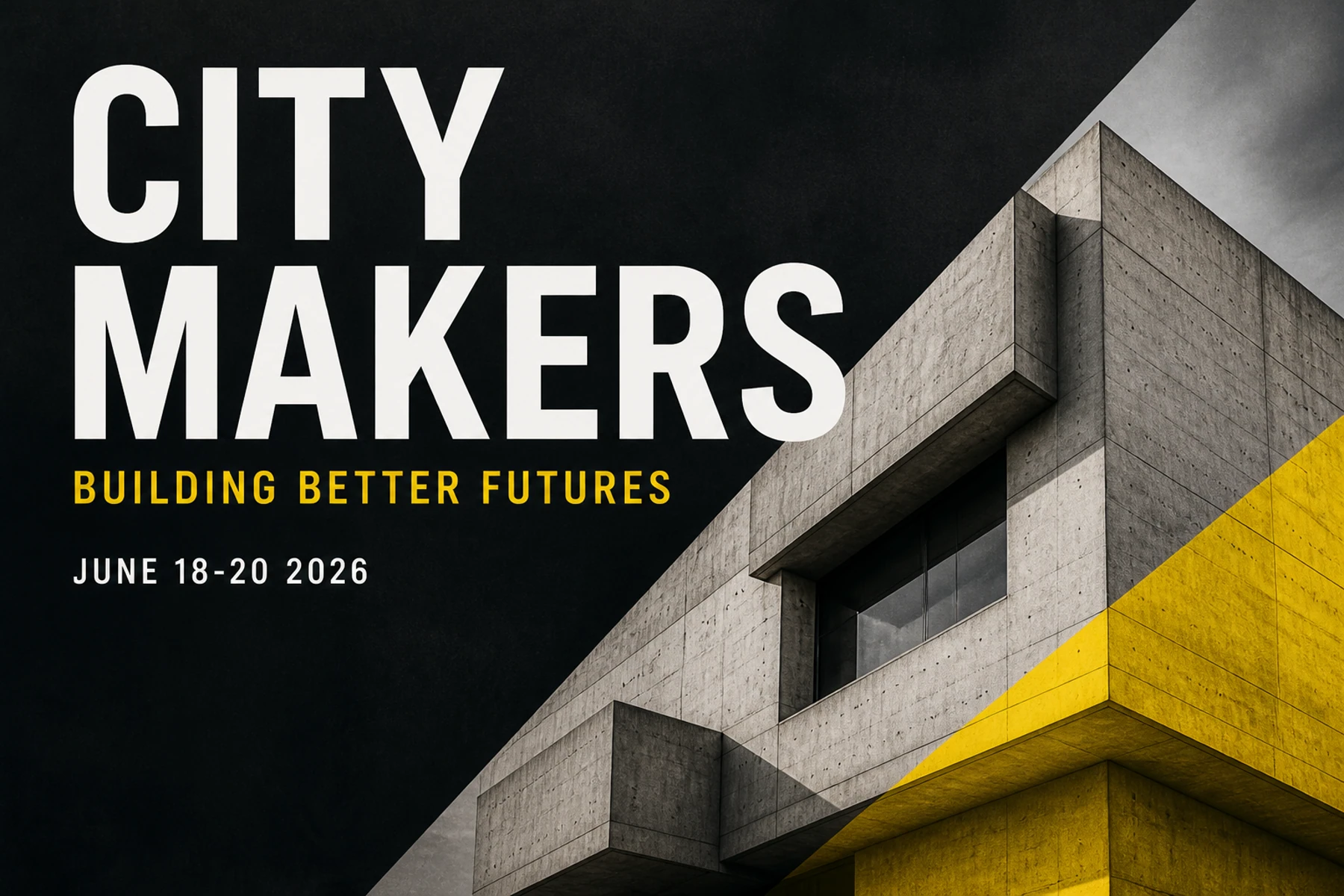
Write a prompt that clearly separates what the subject does from how the camera moves. This makes it easier to review each element.
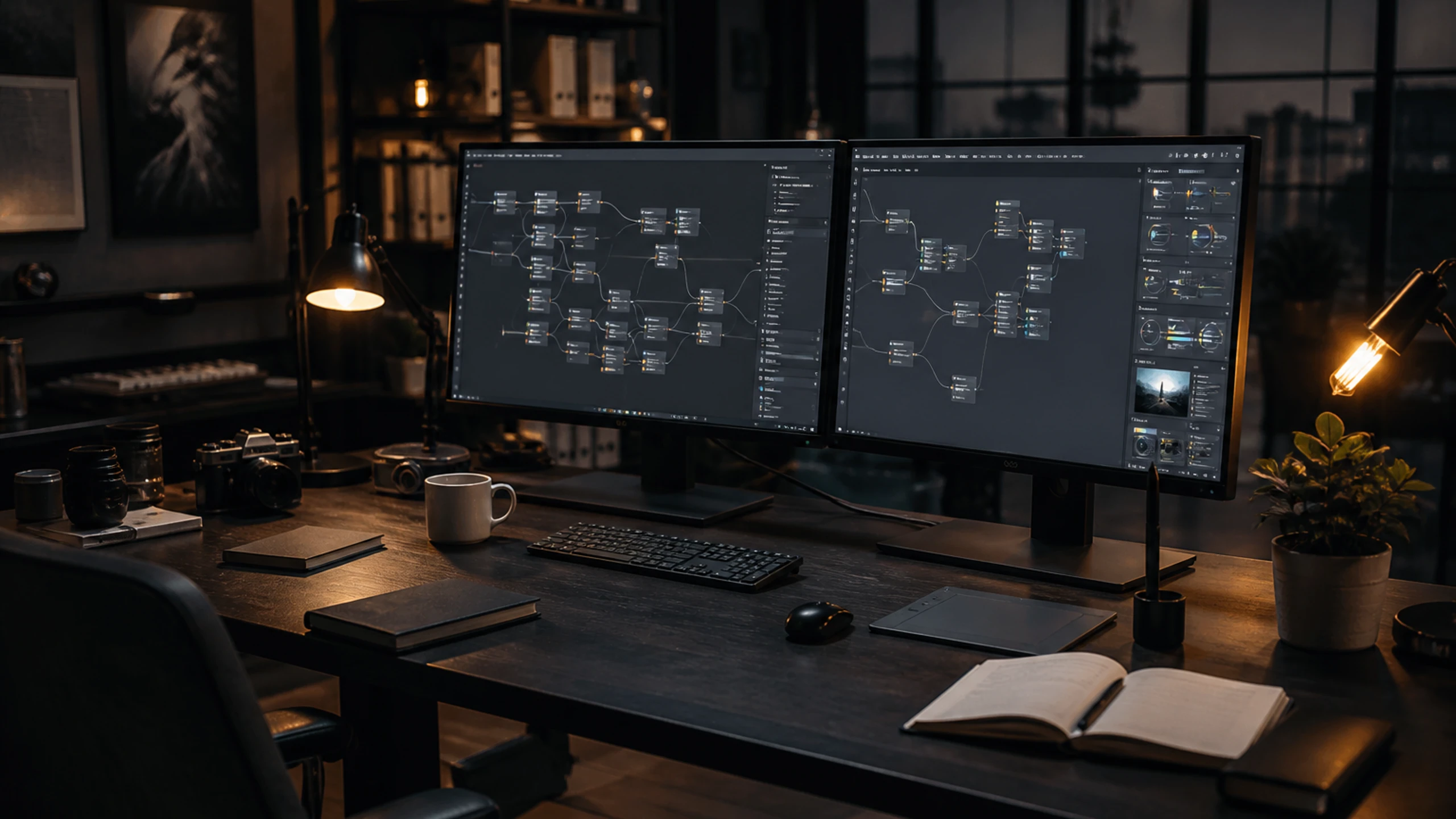
Use image mode or a linked image page when the opening frame needs more preparation. Review the still for pose, crop, and visible details, then attach it to a video model that accepts that input.
Applications
Test a concept before full production.
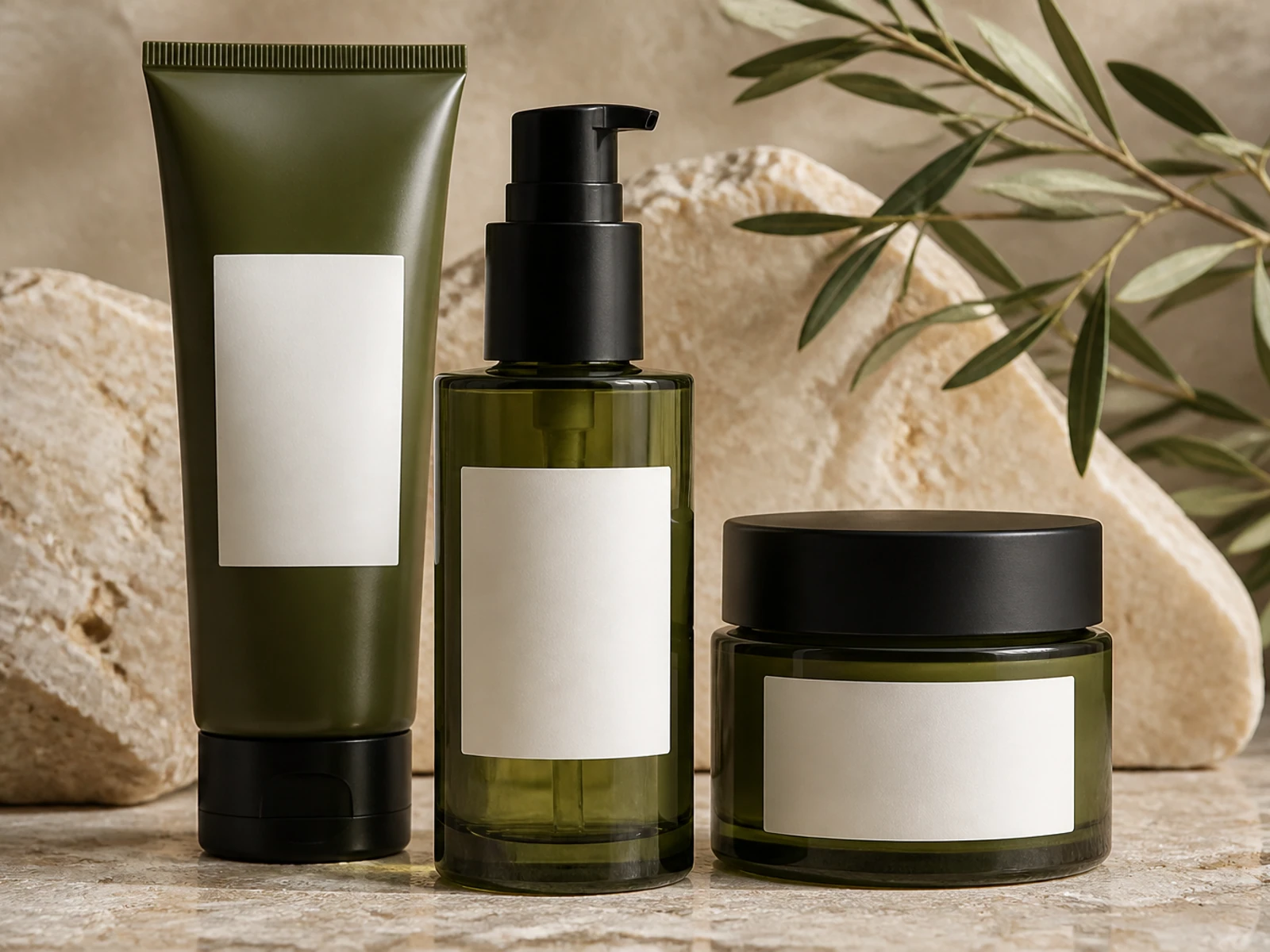
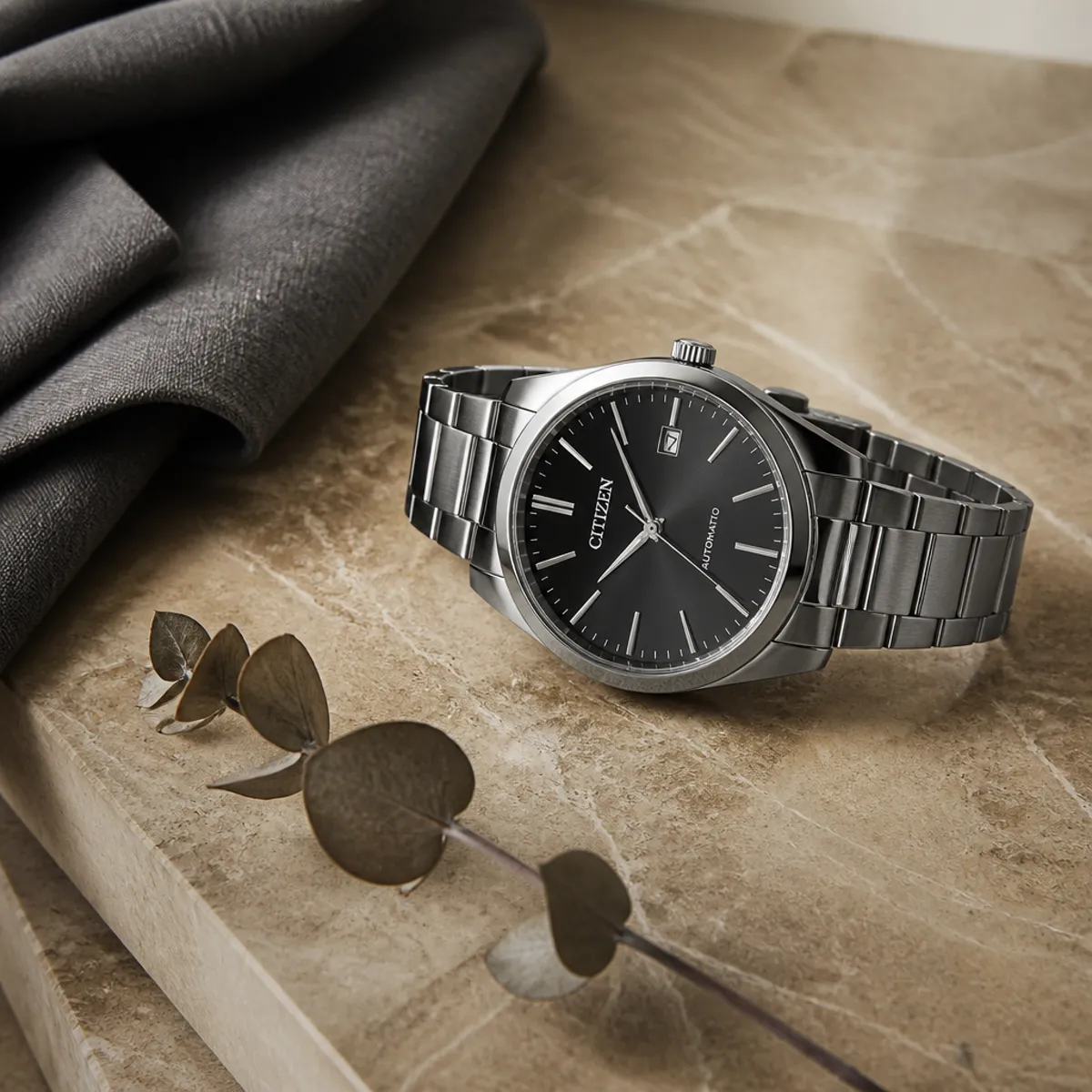
Plan a slow camera move around a product. Check that the reference still shows the item clearly and the motion matches your brief.
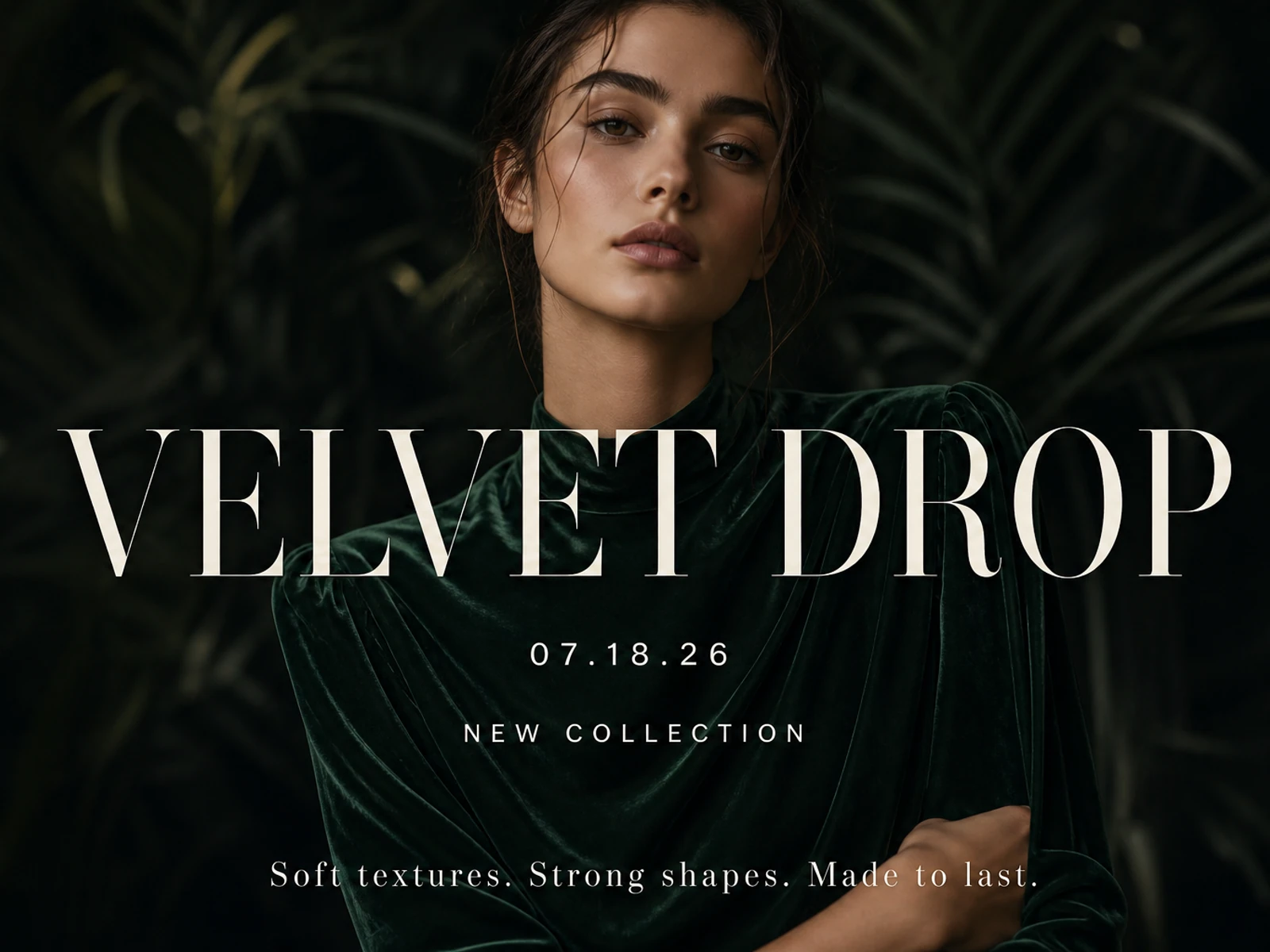
Plan an opening shot for an event recap or social teaser. Leave space in the composition for titles you can add in an editor. Review any generated lettering frame by frame before using it.
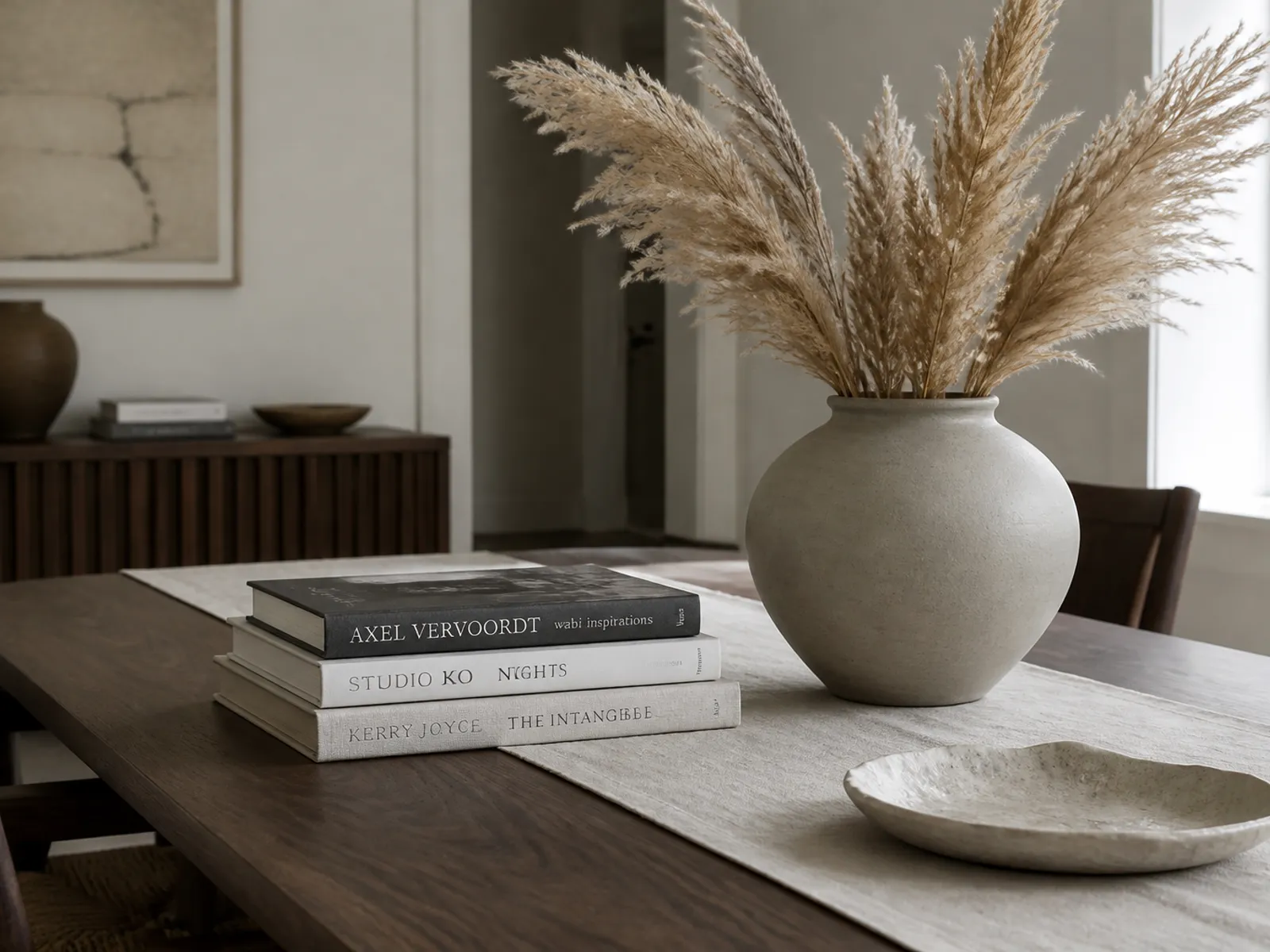
Test how a garment moves in different shots. Use a consistent reference still; expect identity drift across runs.
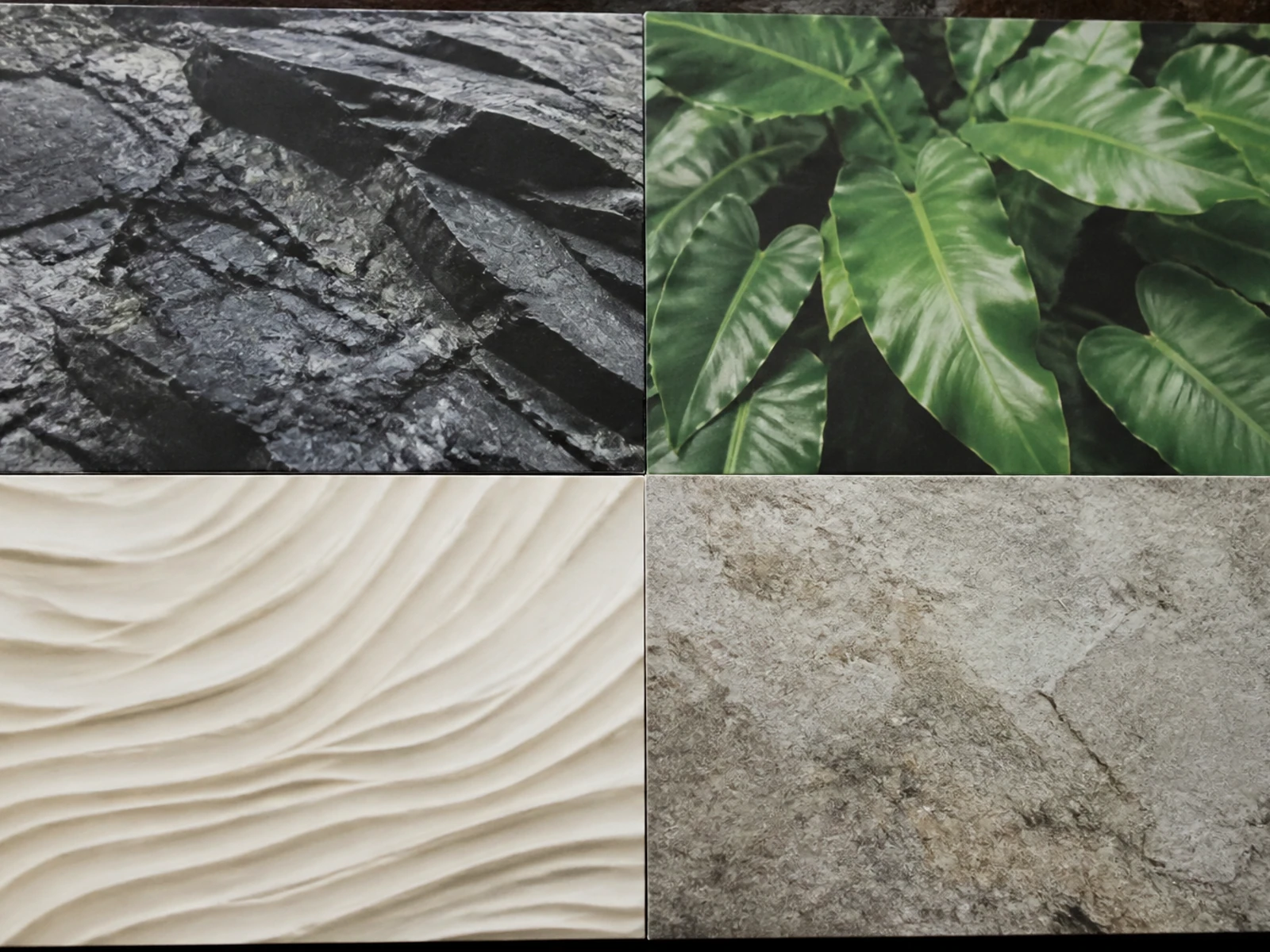
Generate one shot per storyboard panel. Compare each independently; no auto multi-shot feature exists.
Kling 4 vs still-prep pages
Use the first clip to identify a specific change: clearer references, simpler movement, a better crop, or different available controls.
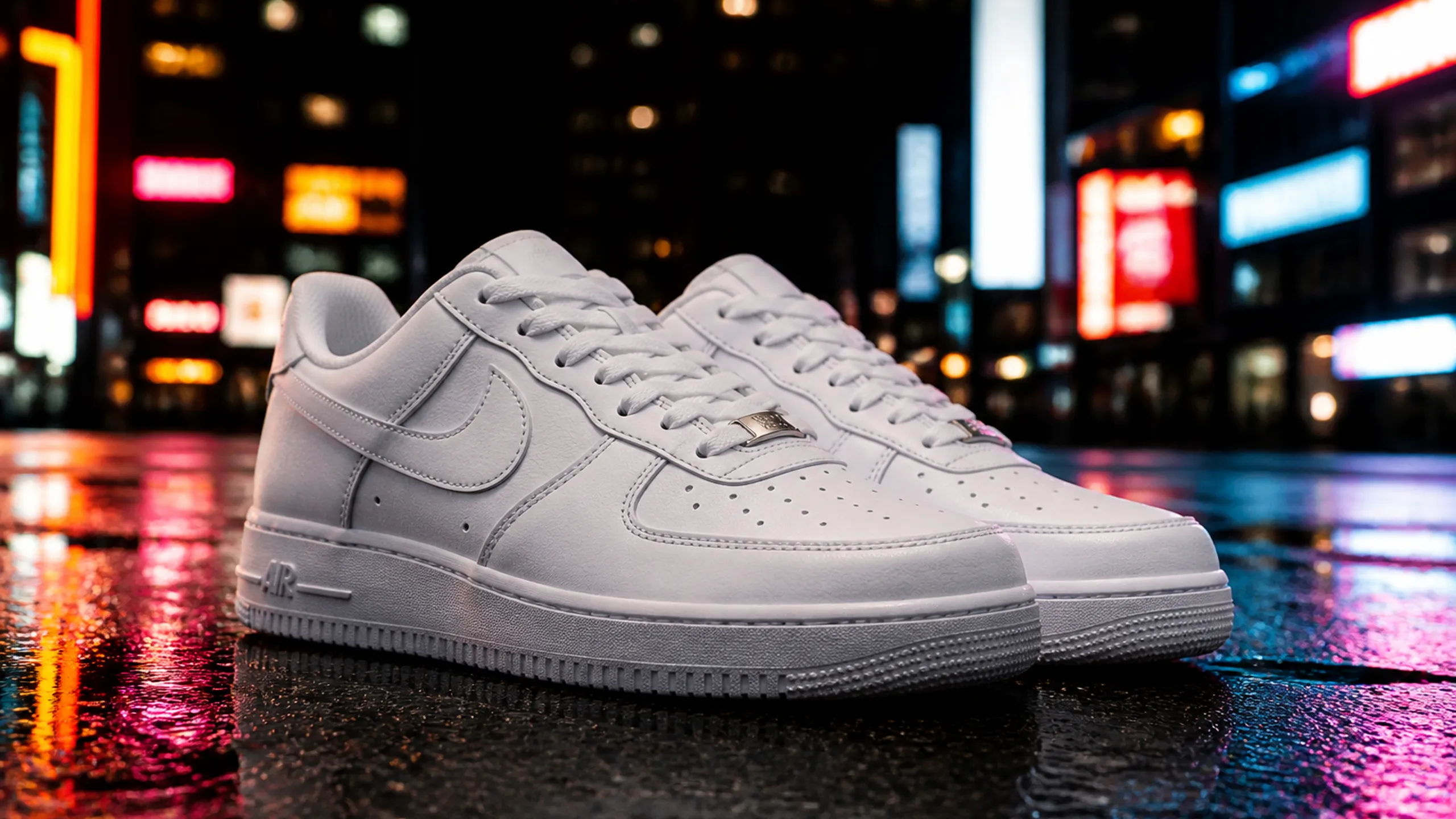
Try a single shot before planning a longer sequence. Compare the returned movement with your brief, then decide whether the idea needs another attempt or a different composition.
If the output is weak, create a better reference still with an unobstructed subject and correct framing.
Before running a complex motion, compare first and last frame inputs to ensure they are compatible.
Change one setting at a time and read the updated credit cost. Compare results before rerunning.
Kling 4 credits and limits
Read your balance and the cost displayed for the current settings. New purchases are paused; the pricing page remains available for reference.
Review your account balance before starting a generation. If it is below the displayed cost, the request cannot proceed. New credit purchases are currently unavailable.
The displayed credit cost may change when you adjust duration, resolution, or ratio.
Available controls vary by selected model. Check the panel for your model's options.
You can read the pricing page, but checkout and top-ups are currently unavailable. Do not plan a paid run around credits you have not yet received.
Find answers about reference images, motion prompts, available controls, credit costs, and reviewing a finished clip.
Choose an input and describe the movement before adjusting the remaining settings.
Check the selected model’s options and separate a weak prompt from a weak reference.
Read the current credit cost and decide whether an input still needs more preparation.
Inspect the complete file and compare subjects across each clip in a planned sequence.
Still tools for Kling 4 frames
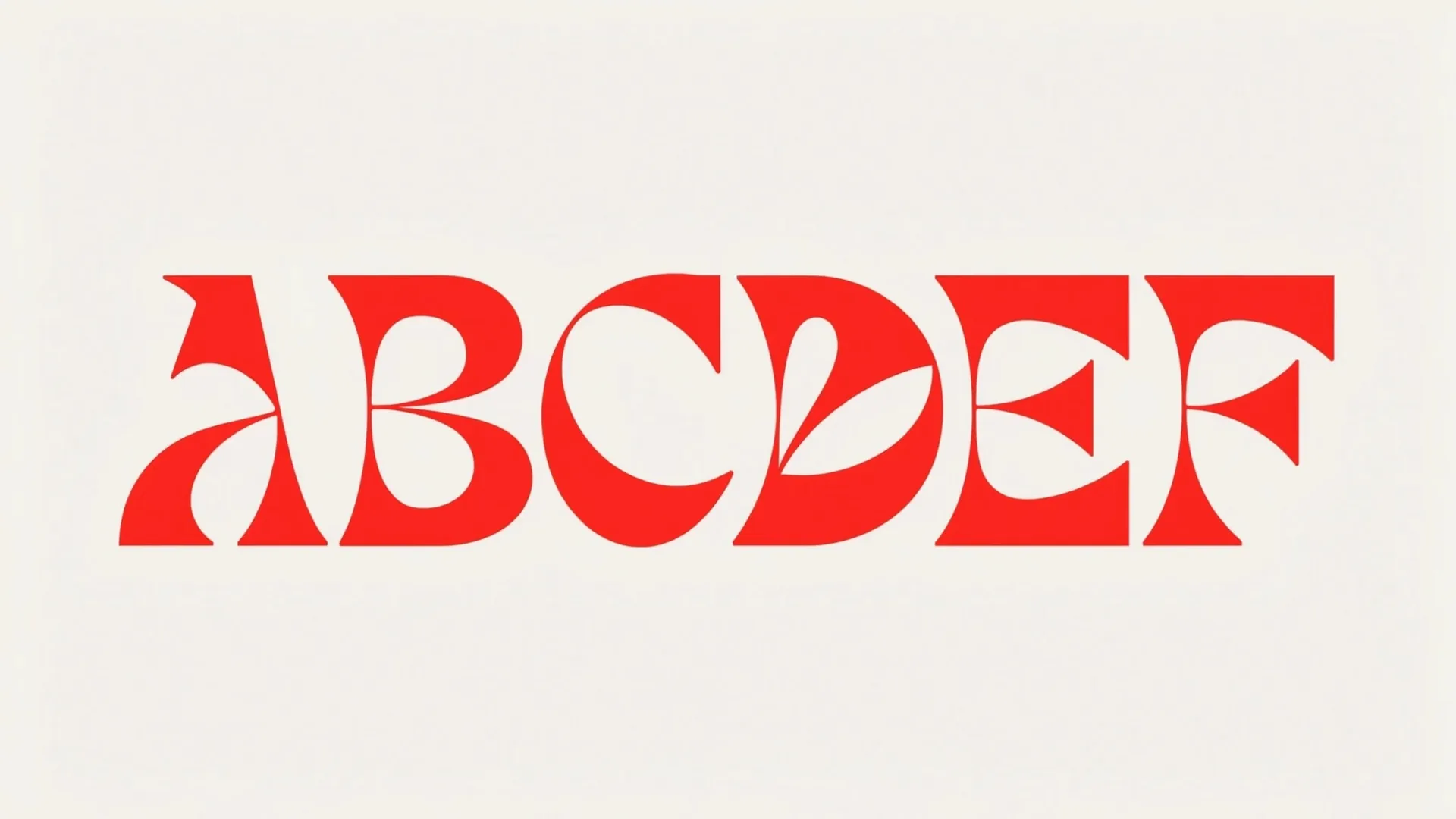
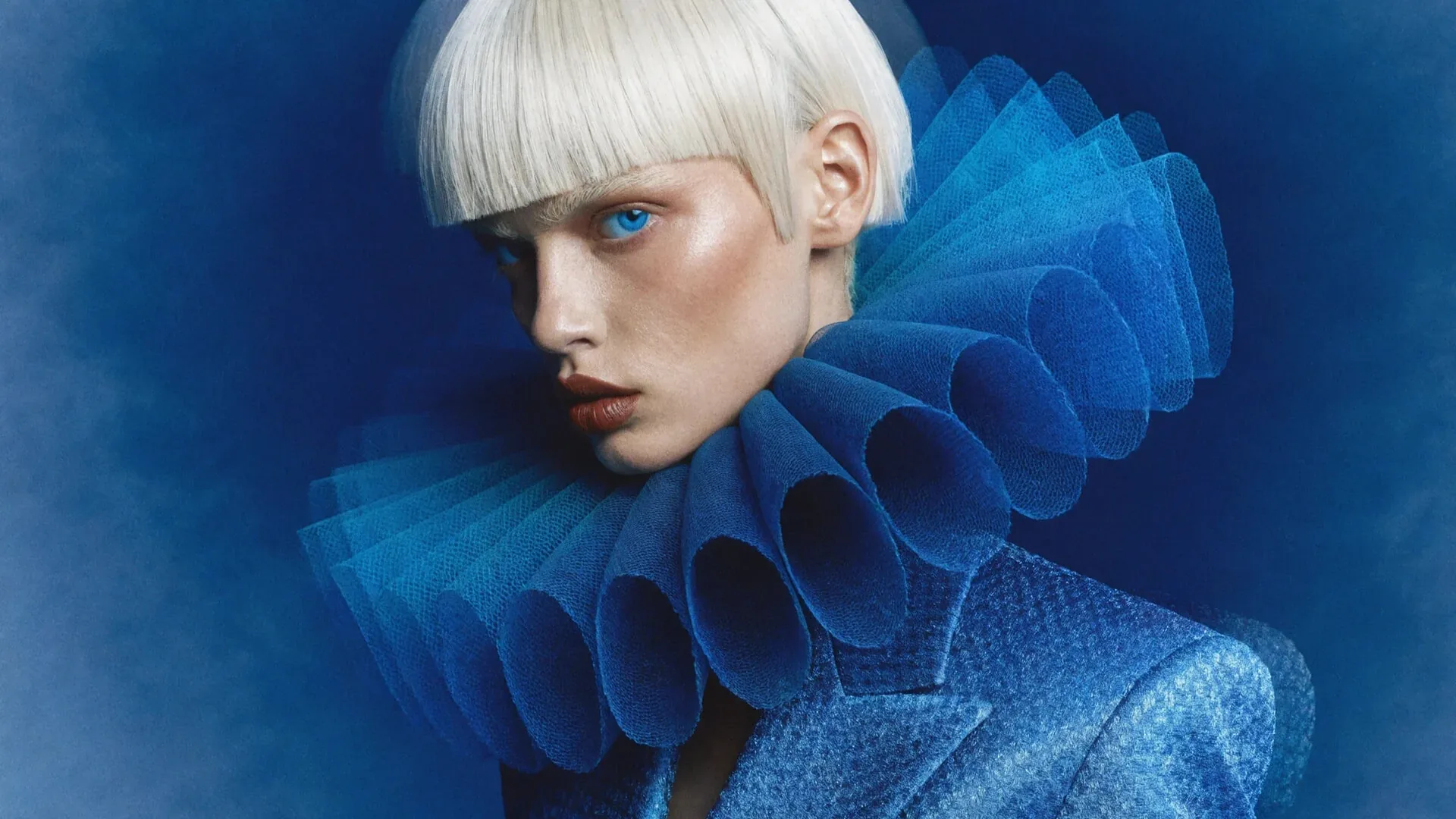
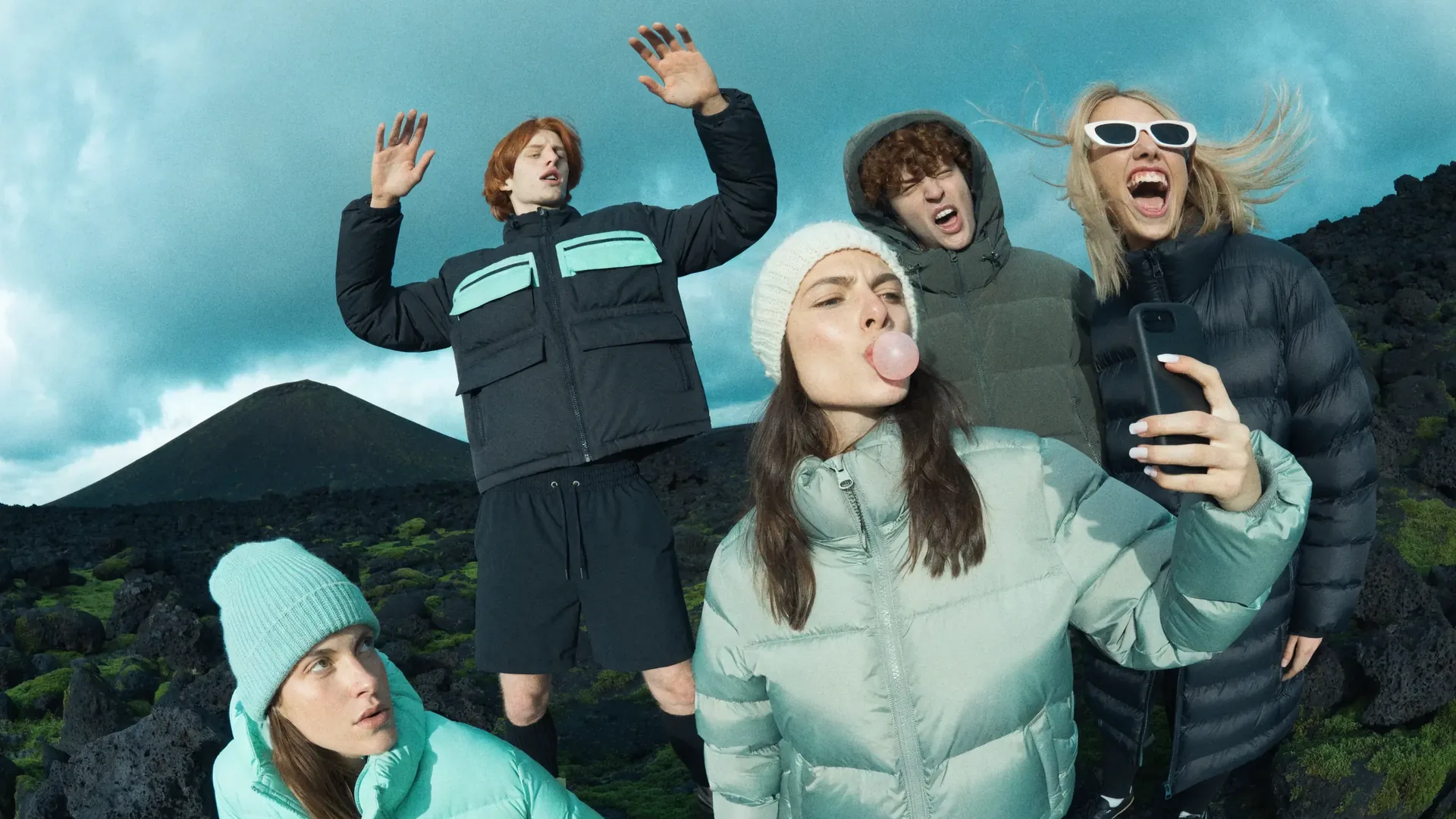
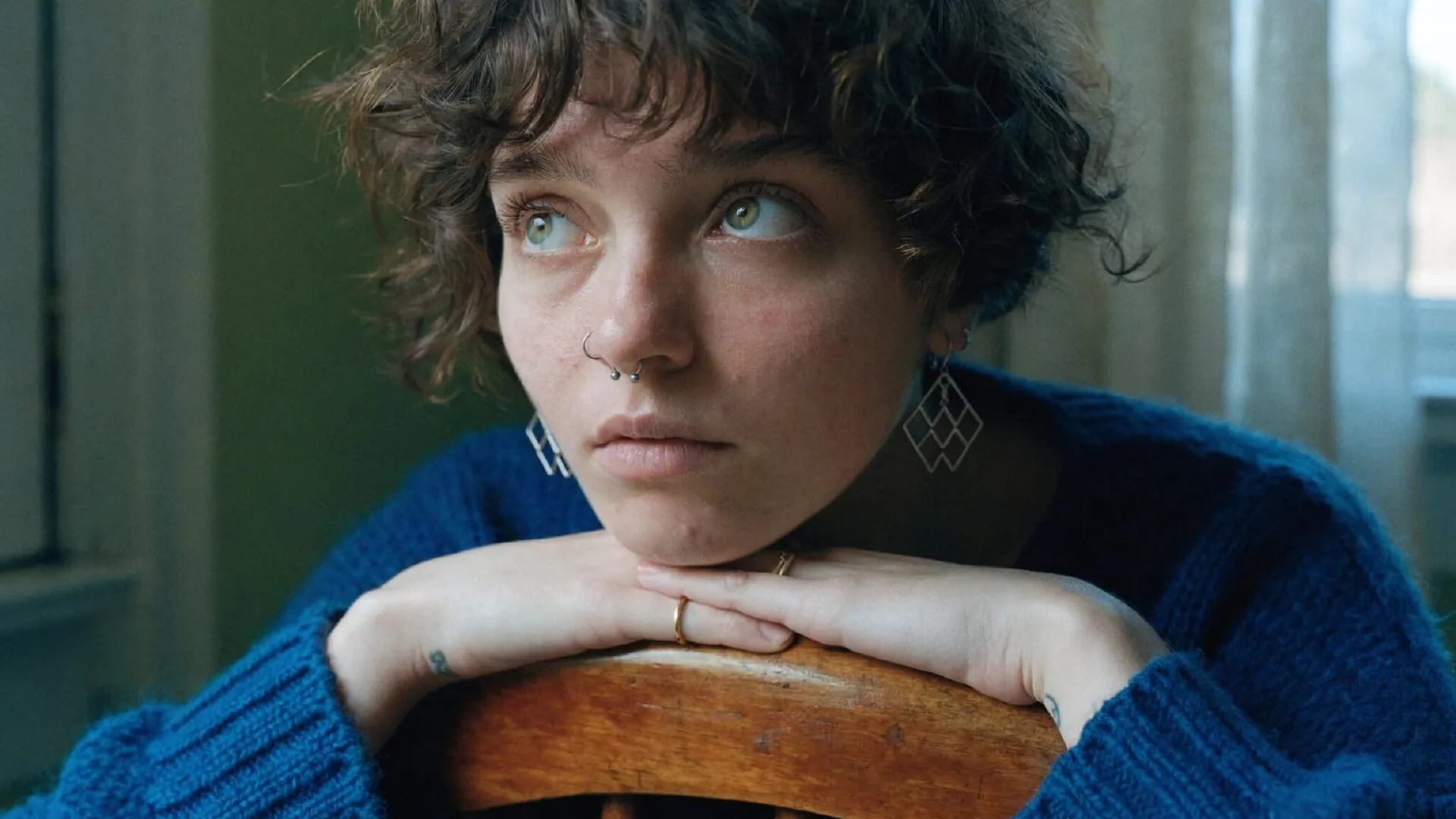
Keep generating clips on Kling 4. Open one of these image-model pages only when you need a still to attach as a reference, first frame, or last frame. The cards are concept stills, not video demos, and these tools do not generate clips.
Use the GPT-4o page to prepare a type-forward still, then bring that file back into the workspace as a first frame or on-screen reference. GPT-4o is a still tool here, not a video model.
Pro for high-finish fashion stills; Nano Banana 2 when clothing and weather have to look photographed. Generate the still there, then use it in the workspace as an identity frame.
Open Seedream 4 to build a fantasy or campaign still, then attach that image as a first or last frame for a camera move through the same world.
Z-Image for window-lit portrait stills; Flux 2 when silhouette and contrast lead the frame. Both are still-prep options before a continuity shot.
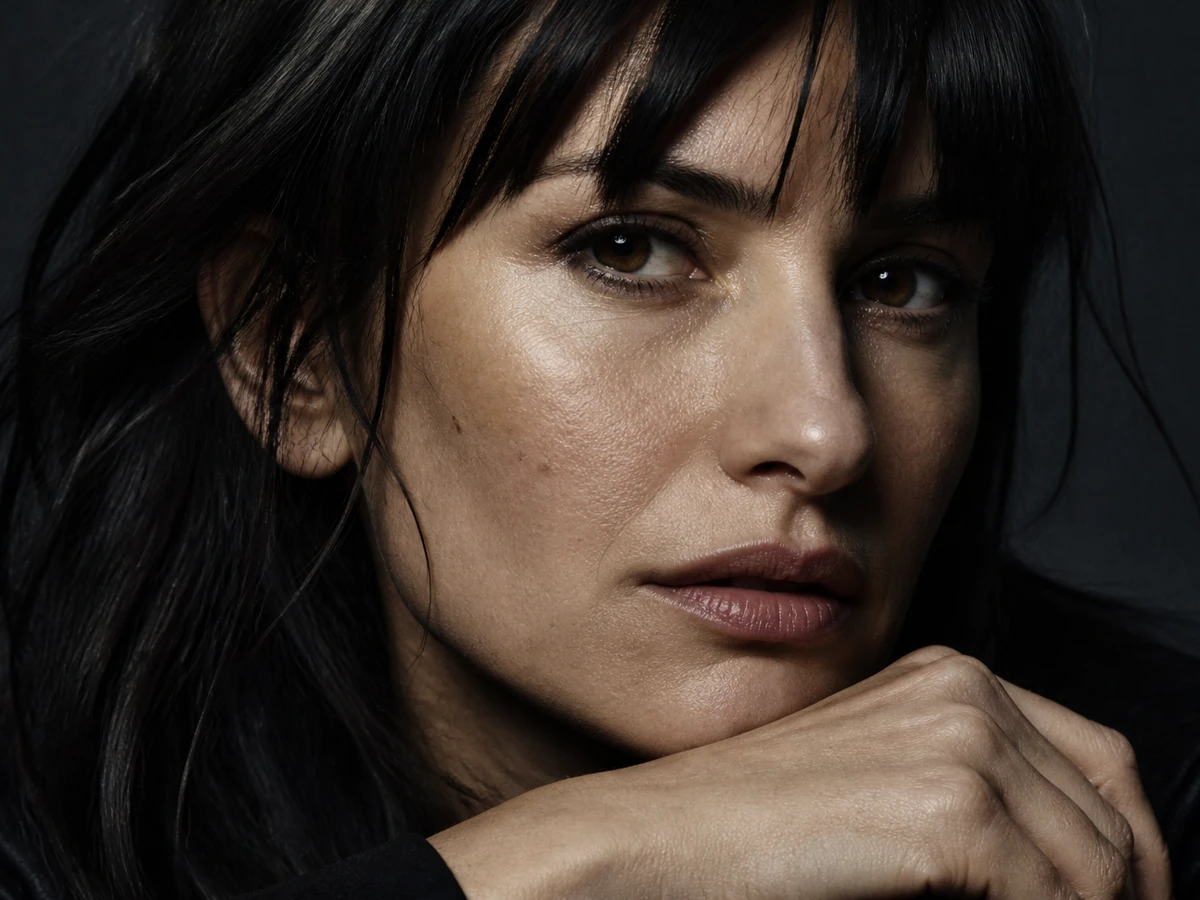
GPT-4o stills for lettering frames
Concept still: photoreal close-up portrait with cinematic side light, useful as a planned identity frame.
Explore Our Curated Set of Associated AI Models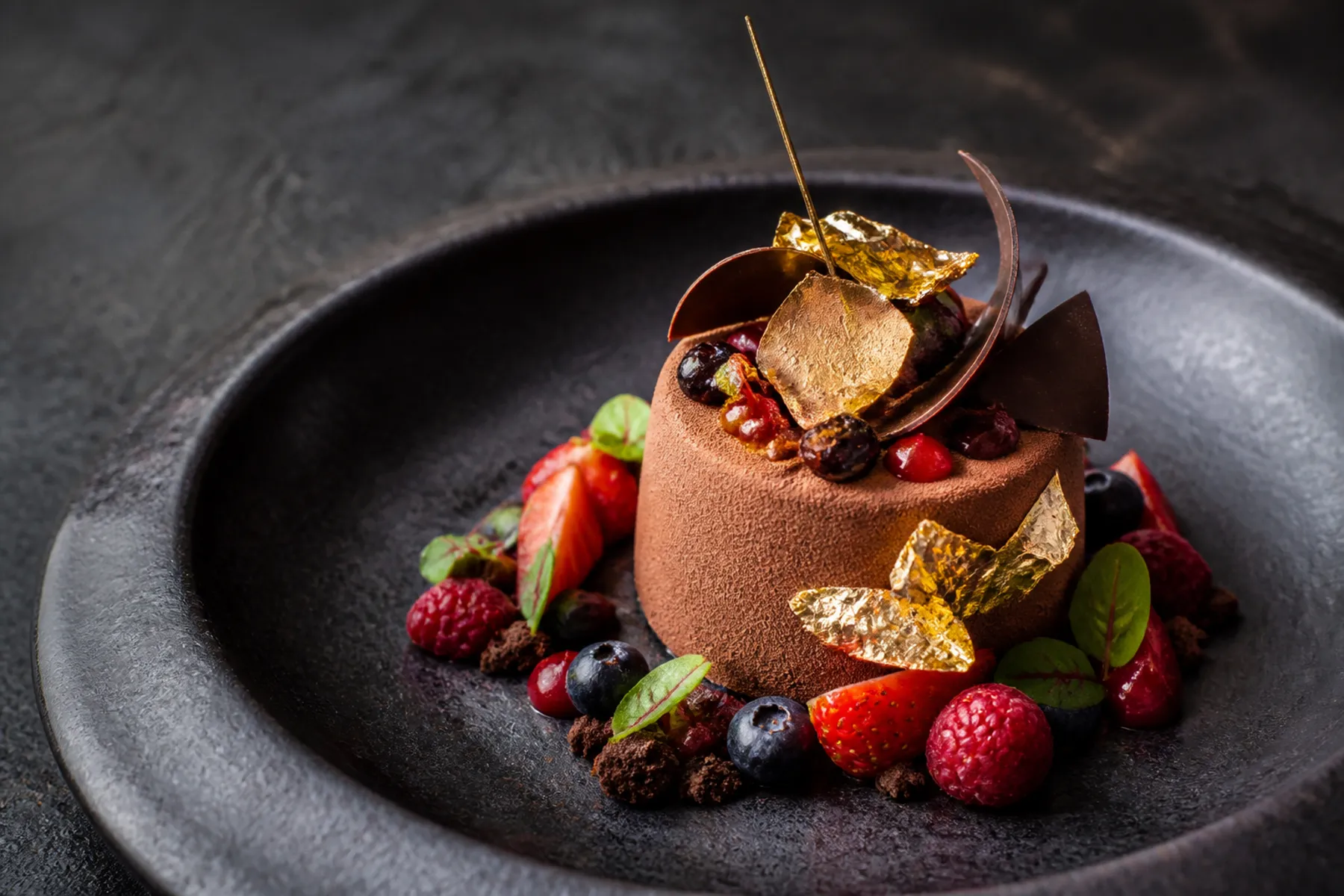
Nano Banana Pro stills for fashion frames
Concept still: gourmet chocolate dessert with berries and gold leaf, useful when you need a high-finish plate as a frame.
Explore Our Curated Set of Associated AI Models
Nano Banana 2 stills for grounded group frames
Concept still: silver concept car in a concrete atrium, useful as a planned opening frame.
Explore Our Curated Set of Associated AI Models
Seedream 4 stills for illustrated world frames
Concept still: floating island temple at golden hour, useful as a campaign-world first frame.
Explore Our Curated Set of Associated AI Models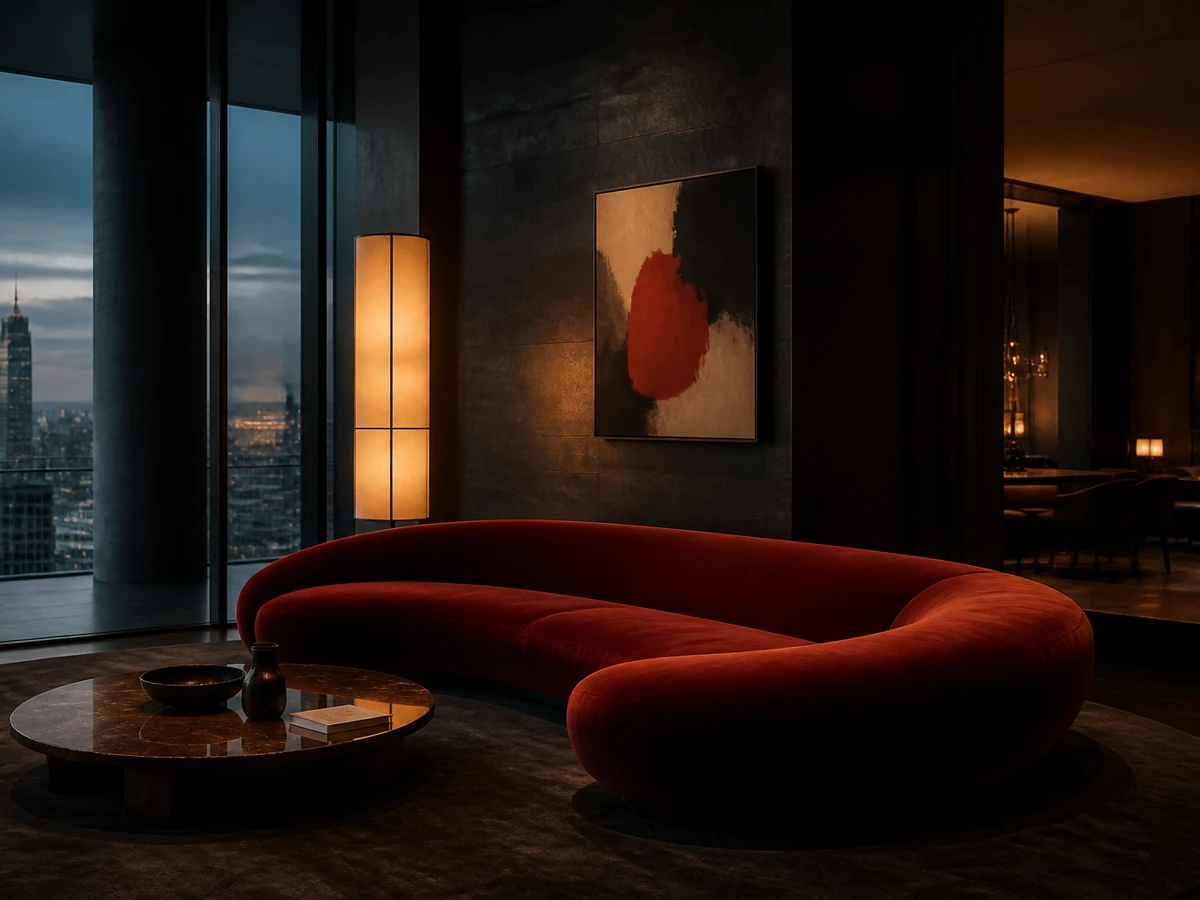
Z-Image stills for natural portrait frames
Concept still: moody penthouse living room with a red velvet sofa, useful as an interior frame.
Explore Our Curated Set of Associated AI Models
Flux 2 stills for graphic fashion frames
Concept still: cinematic fighter jet flying through sunlit clouds, useful as a directional frame, not as a clip.
Explore Our Curated Set of Associated AI Models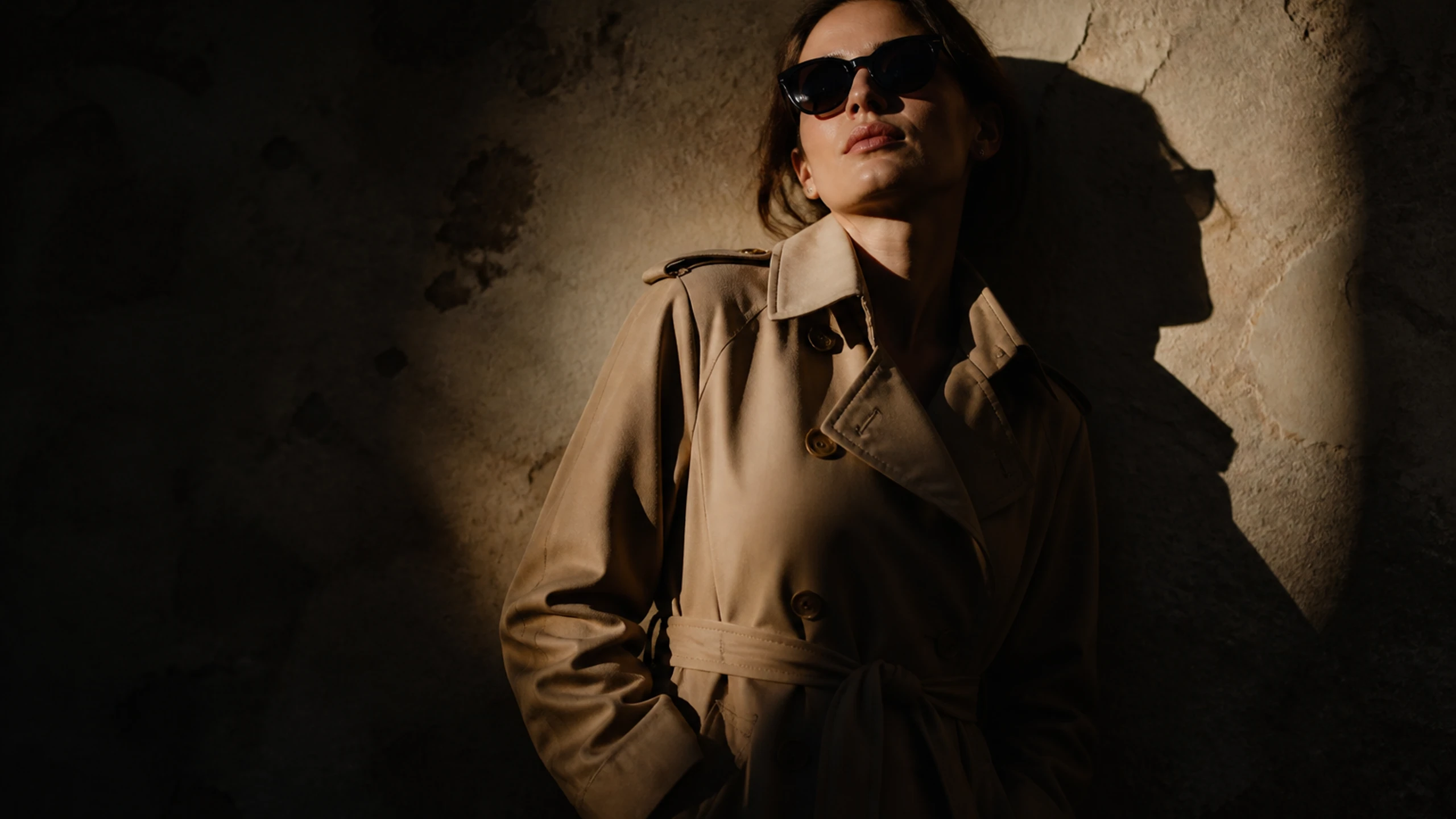
Choose one motion, inspect the references, and check the displayed cost. Use the result to decide the next change.
Write a brief that separates the subject’s movement from the camera path. Keep the scene focused enough to compare the result with your original intent.
Check the subject, pose, and crop before attaching a reference. If first and last frames are available, compare both images for conflicting details.
Keep the parts of the brief that worked. Adjust one input or setting, then compare the next clip against the same review points.
Read the displayed credit total after changing settings and compare it with your account balance. New purchases are paused, so checkout cannot add more credits now.