

Product-Reveal Shot
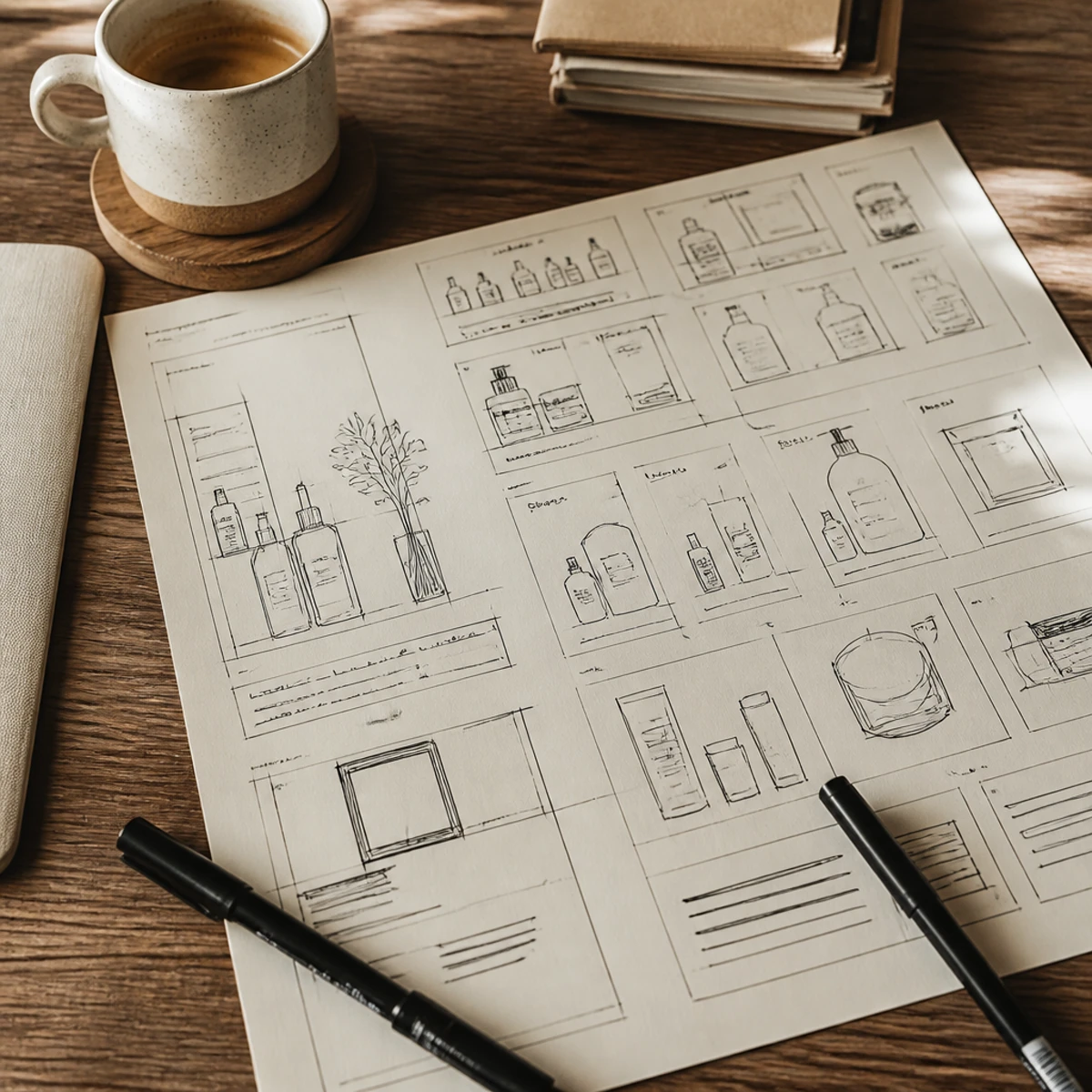
Create a slow camera move around a product to see how it looks in motion. Check that the reference still shows the item clearly and the movement matches your brief.
Kling 4 is an independent video workspace where a written idea or a reference image becomes a short clip you can download and play back. Describe the action, choose a model, and the site returns a motion preview you can judge.
Kling 4 AI Video Generator – Make a Clip from Text or Image
Kling 4 is an independent video workspace where a written idea or a reference image becomes a short clip you can download and play back. Describe the action, choose a model, and the site returns a motion preview you can judge.
See a single shot before you commit to a full storyboard.
Create a slow camera move around a product to see how it looks in motion. Check that the reference still shows the item clearly and the movement matches your brief.
Build an opening shot for an event recap or social teaser. Leave space for titles you'll add in an editor, and inspect any generated text frame by frame before using it.
Test how a garment moves in different shots. Use a consistent reference still and expect some identity drift between runs.
Generate one shot per storyboard panel and compare them independently. There's no automatic multi-shot feature, so plan each one separately.
Start with a clear action and a camera move. Add a reference if you have one, then generate and watch the result.
Describe what the subject does and how the camera moves in one or two sentences. For example: a person walks left while the camera slowly pulls back. Mention the starting composition and the moment you want to check.
If you have an image that shows the subject and framing, attach it. When the model supports first and last frames, make sure both images match your intended shot.
Select the duration, resolution, and aspect ratio available for your chosen model. Look at the credit cost on the generate button, then submit. Change only one variable at a time to see its effect.
Open the downloaded clip in a player or editor. Watch the beginning, the end, and any fast-moving parts for jumps or distortions. Keep the original file when you bring it into your editing timeline.
These are example briefs to begin a video shot. They describe a camera move and action and ask you to check motion, not show a generated result.
Start close on a ceramic vase on a wooden table. Slowly pull the camera back to reveal a window with daylight. The vase remains in focus. No other movement.
Does the camera move smoothly? Is the vase in focus throughout?
A wide shot of a mountain range at sunrise. The camera pans slowly from left to right. The sky is orange and pink. No foreground movement.
Is the panning motion smooth? Does the color of the sky change naturally?
A person in a red jacket walks into the frame from the left. They stop and look up. The camera is static. The background is a city street.
Does the person enter from the correct side? Is the stop and look up natural?
A close-up of a hand writing with a fountain pen. The camera slowly zooms in on the nib. The hand remains steady. The background is paper texture.
Is the zoom smooth? Is the pen nib in focus at the end?
Kling 4 interprets your creative direction to generate a video shot. Descriptive text provides the core subject, action, and style. A supported visual reference can supply additional compositional or tonal cues. The selected model processes these inputs to produce a unique clip, where final layout and timing are interpreted results, not a direct copy of your input file.
Your written prompt is the primary instruction set. It defines the subject, describes the action or mood, and can suggest camera movement like a slow pan or a quick zoom.
Uploading a supported image can help guide the generation. It may inform the overall composition, color palette, or the placement of elements within the frame.
The selected model combines your text and any reference to generate a new video clip. The output is an interpretation of your direction—a unique visual draft where motion, lighting, and framing are synthesized.
Descriptive text outlines the scene, subjects, and desired motion. A supported reference image adds visual context, suggesting style, composition, or lighting. Together, they guide the generation toward a specific creative direction, though the final output is an interpretation of these inputs.
Move from a text idea or a visual reference to a directed video draft. Kling 4 helps you explore subject motion, camera direction, and a specific shot composition, giving you a visual starting point for further development.
Find answers about reference images, motion prompts, available controls, credit costs, and reviewing a finished clip.
Choose your input and describe the desired movement before adjusting other settings.
Review your selected model's options and distinguish between a weak prompt and a weak reference image.
Check the displayed credit cost for the current model and settings before starting a generation.
Open the downloaded file and compare subjects across each clip in a planned sequence.
Resolve the dominant movement first—for example, a slow pullback—before adding compound changes like subject walking.
Confirm your account balance is sufficient for the displayed cost before starting. If it's lower, the request cannot proceed. New credit purchases are currently unavailable.
The displayed credit cost updates when you change duration, resolution, or aspect ratio.
Available controls differ by model. Review the panel for your chosen model's specific settings.
You can view the pricing page, but checkout and top-ups are currently disabled. Don't plan a paid generation around credits you haven't yet received.
Write a brief describing subject, camera motion, and action. The model generates a short video clip for evaluating motion smoothness and focus.
Choose a motion idea, add a reference if you have one, and check the displayed credit cost. Generate a single shot to see your concept in motion.